
How Do I Set Up A Google Maps API Key?
To start you must have already created a Google account. Click here to create a Google Account.
- When you're signed in to Google, click here to go to the Google Developer Console if you aren't already there.
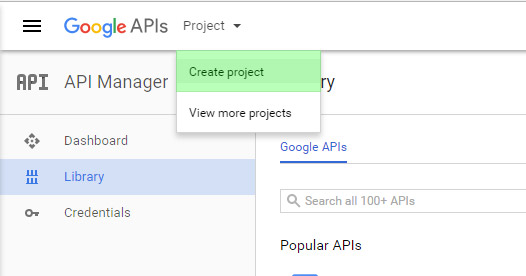
- Click the Project dropdown list in the top left of the screen
- Click "Create Project"
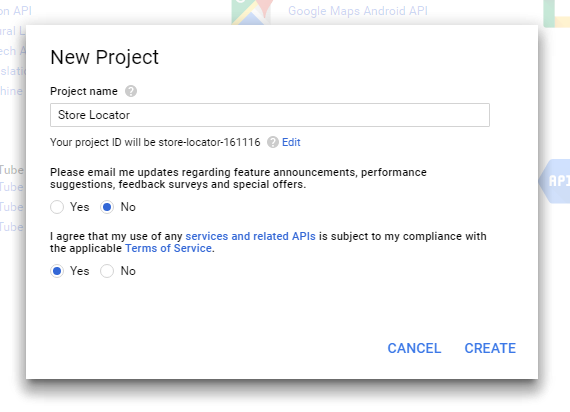
- Name your project "Store Locator" And select whether or not you would like email updates, and select Yes to agree to the Terms of Service and then click "Create".
- Wait for the project to be created. It should reload the "Library" page when it's created.
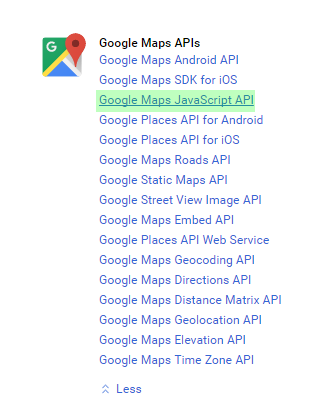
- Under the Google Maps APIs group in the center, click Google Maps JavaScript API
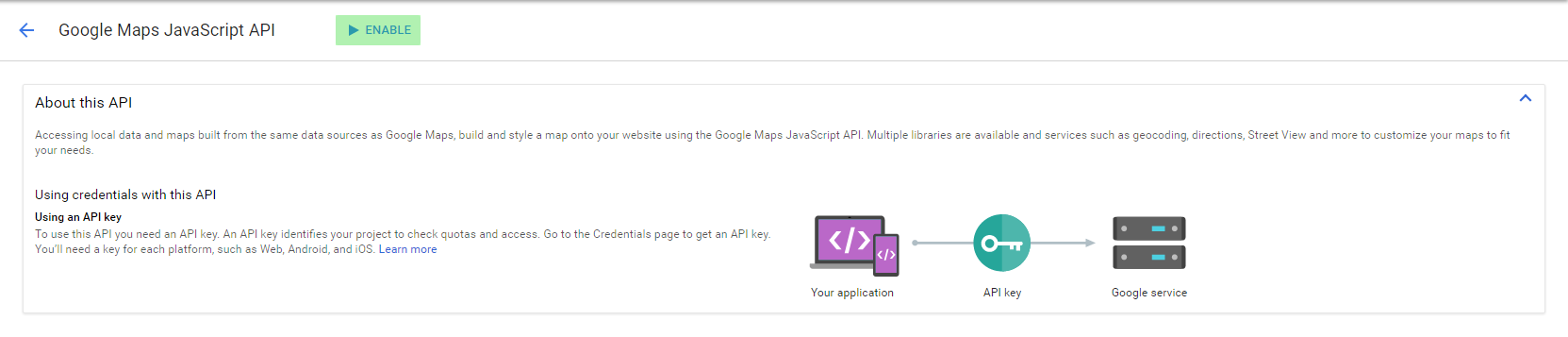
- Click enable
- Click the small left arrow next to the title "Google Maps JavaScript API".
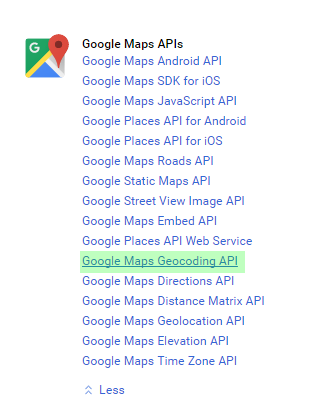
- Click the small "More" link underneath "Google Maps API".
- Locate and click "Google Maps Geocoding API".
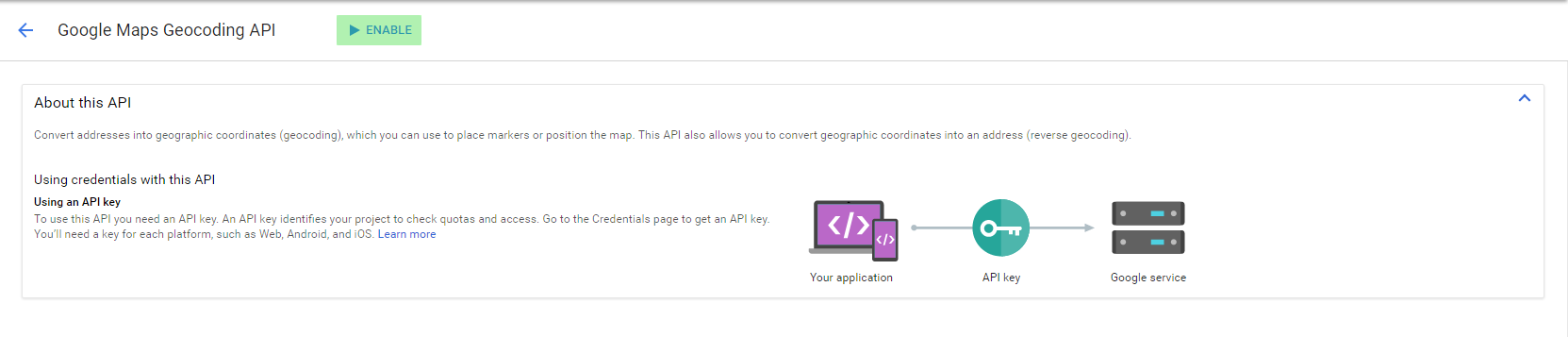
- Click "Enable"
- On the navigation menu on the left, click Credentials under API Manager
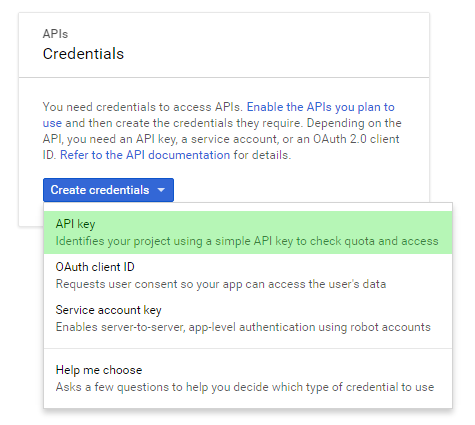
- Click “Create credentials”
- Select "API key"
- Your API Key will show in a box. Copy this. In our app under "Settings" scroll down to Google Maps API key and paste the API Key.
- Test both adding a location and searching on your map to ensure the API key is working correctly.