
Why Is My Search Returning Random Locations?
When looking for a location, the search engine needs to understand the information entered in the search box and determine its location in the world. Sometimes there may be multiple places with the same name in different countries. To avoid confusion, you can adjust settings in the Store Locator app by going to Settings in the menu bar.
Solution 1: Limit countries
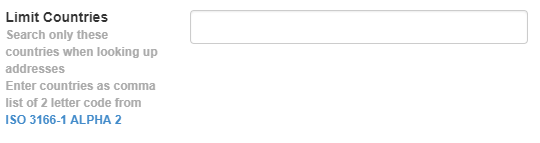
If you only have US locations you can input "us" into the input box, and all searches will be limited to the US. For US and Canada for example, input "us,ca".
Solution 2: Only Search by Zip
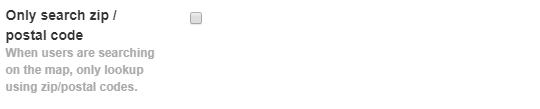
If you only expect users to input zip/postal codes, enable this.
We also recommend changing the language of the search box to reference only inputting zip/postal codes.
Solution 3: Append to Search Terms
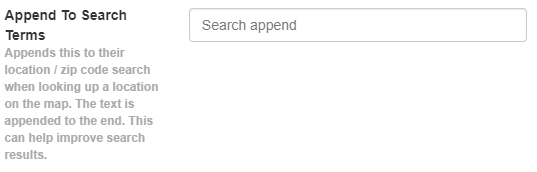
This will add text to the end of their search query.
For example if a user inputs "Main St.", and the setting contains "Houston", their final search will be Main St. Houston".
This can help the search results behind the scenes.